

Technology is shaping the way we learn. Schools now rely on digital tools for assignments, learning apps, and classroom resources. But keeping track of multiple usernames and passwords for each tool can be frustrating for students and teachers alike. That’s where Clever comes in. Clever simplifies digital learning by acting as a single gateway to all school applications.
What is Clever?
Clever is an online platform that connects schools, students, teachers, and educational applications in one place. Think of it as a central hub for digital learning. Instead of juggling multiple accounts, users can log in once and access all the apps assigned to them.
Clever is widely used in schools because it:
- Saves time by reducing login hassles.
- Keeps student information synchronized across apps.
- Provides a clean, personalized dashboard for each user.
- Supports multiple devices and browsers.
It is suitable for students of all ages, as well as teachers, school staff, and administrators. With Clever, everything from classroom apps to educational resources is organized and easy to reach.
What is Single Sign-On (SSO)?
Single sign-on (SSO) is the technology behind Clever’s simplicity. SSO allows users to log in once and access multiple applications without entering credentials repeatedly.
Here’s how it works in practice:
- A student logs into Clever using their school credentials.
- Clever verifies the login.
- All apps connected to the student’s account open automatically.
Benefits of SSO include:
- Time-saving: Students and teachers spend less time logging in.
- Fewer errors: Reduced risk of forgotten passwords.
- Simplified classroom management: Teachers can focus on teaching rather than troubleshooting login issues.
SSO is particularly helpful in schools with many digital resources and tools.
What is the Clever Portal?
The Clever Portal is the main dashboard users see after logging in. It is designed to be simple and intuitive, with a layout that displays apps, links, and resources relevant to each user’s role.
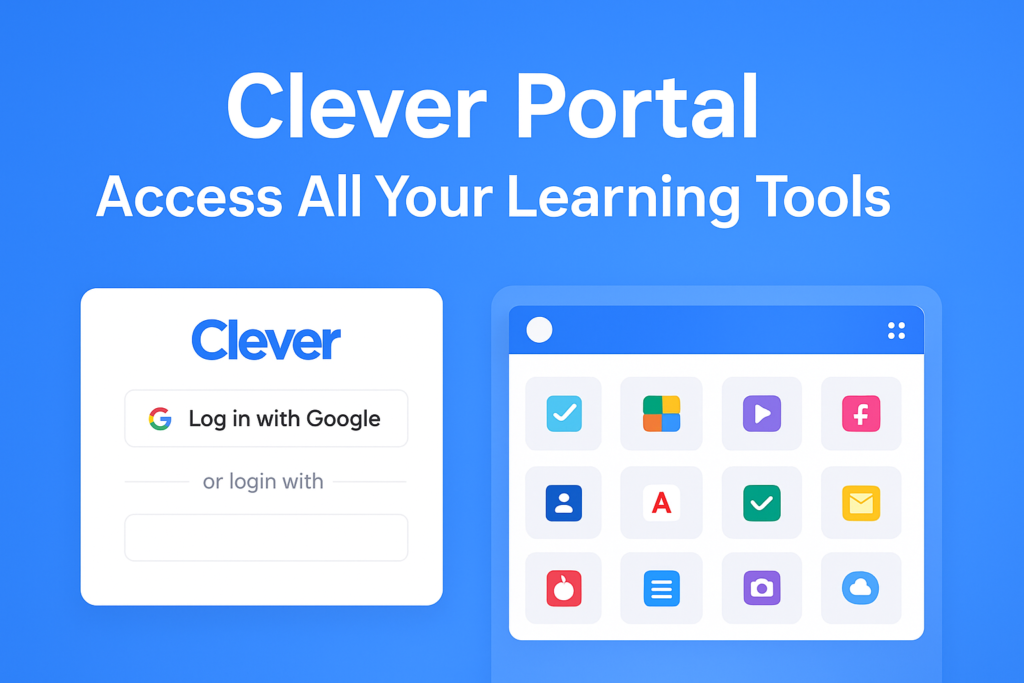
- Students: See only their assigned applications.
- Teachers: Access instructional tools, teaching resources, and class apps.
- Staff and administrators: Manage applications, accounts, and school settings.
The portal reduces confusion and ensures every user can quickly find the tools they need.
Favoriting Applications
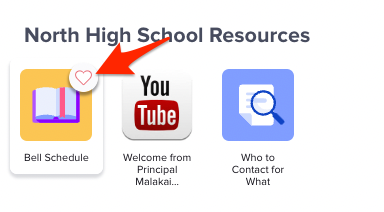
Clever allows users to mark apps as favorites. Favoriting helps you keep frequently used apps at the top of your dashboard.
How to favorite an application:
- Log in to the Clever Portal.
- Locate the app you use most often.
- Click the “star” or “favorite” option on the app icon.
- The app will now appear at the top of your dashboard for faster access.
Favoriting is useful for students who need consistent access to certain learning tools and for teachers who rely on specific classroom resources.
Searching for Resources
Clever also includes a search feature to find apps and resources quickly.
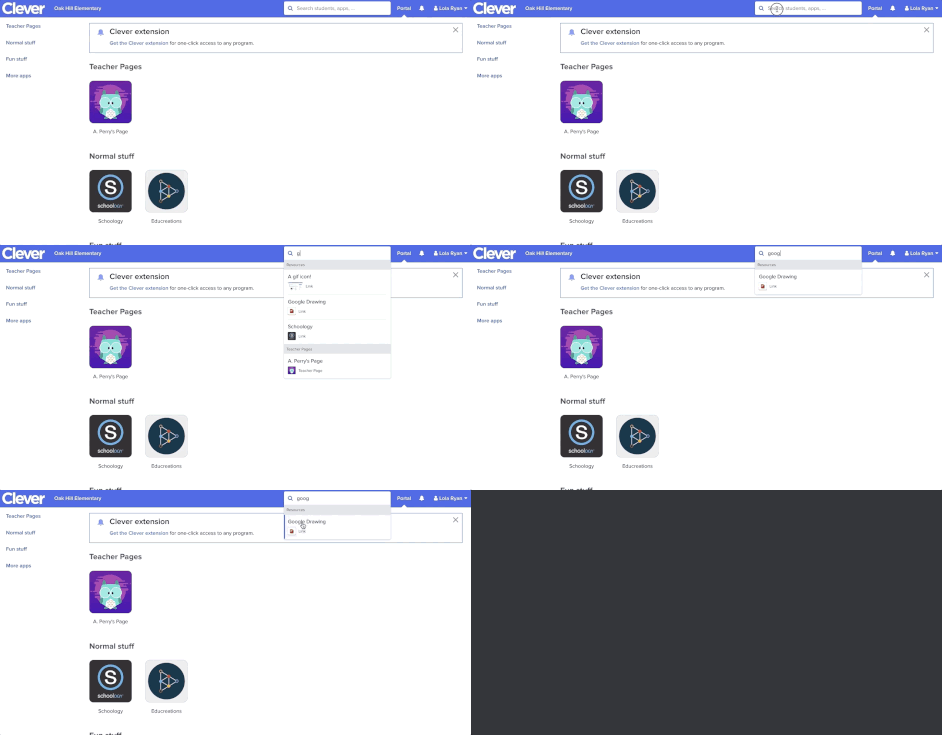
How to search:
- Open the Clever Portal.
- Look for the search bar, usually at the top.
- Type the name of the app or resource you need.
- Click the result to open it instantly.
This feature saves time, especially when a school has a large number of connected apps.
Clever Technical Requirements & Supported Devices
Clever is used by schools, teachers, and students to access educational tools and resources with a single login. To make sure that the experience is smooth, you need the right devices and settings.
Devices and Internet Browsers
Clever runs mostly through web browsers when you’re on a computer. That means you don’t need a special app just to log in and get to your learning apps; you just open a supported browser and go. Most modern browsers are fine, but there are a few that work better than others.
Supported Browsers
- Google Chrome: Works on Windows, Mac, and Chromebooks.
- Mozilla Firefox: A solid choice on desktop computers.
- Microsoft Edge: Compatible and gets regular updates.
Keeping your browser up to date matters. Older versions can struggle with security and can break the way Clever displays apps or logs you in. If your browser is too old or uncommon, you might run into errors when trying to load Clever or launch connected tools.
Chromebooks are fully supported as long as the Chrome OS and browser are up to date. These devices are popular in schools because they simplify login and usually come ready to go for Clever use. For younger students, Chrome and Firefox are generally the easiest to manage because they support the browser extension Clever uses for fast logins
Clever Browser Extension
There’s a free browser extension you can install that makes using Clever even easier. It helps with things like badge scanning and launching learning apps with one click, especially helpful for younger students.
The extension is available for Chrome, Microsoft Edge, and Firefox. Once installed, you typically click its icon to sign in quickly and jump into your assigned apps.
- Google Chrome: Install Extension
- Microsoft Edge: Install Extension
- Firefox: Install Extension
iOS Devices (iPhone & iPad)
For Apple mobile devices, Clever offers a dedicated app you can download from the App Store. Once installed, you can log in with your school credentials and get one-tap access to all your connected learning tools.
Here’s what you need to know:
- Works on iPhone, iPad, and iPod Touch.
- The app requires iOS 12.0 or later. That means most iPads and iPhones from the last several years are compatible.
App Store
If you don’t want to use the app, you can also open Clever in Safari, but the app tends to provide a cleaner and faster login experience.
Using iPads and iPhones is a great option for students who need mobility or are working at home. The Clever app also supports Clever Badges, which let younger kids log in by scanning a QR code instead of typing a password.
Android Devices & Amazon Fire Tablets
On Android phones and tablets, Clever doesn’t have a standalone app like on iOS. Instead, you open Clever in a browser (such as Chrome or Firefox) and log in there.
Web access works fine on most Android devices, but you need to make sure your browser is recent. Older versions of Android often come with outdated browsers that can cause problems.
When it comes to Amazon Fire tablets, the situation is similar. Fire tablets use Amazon’s version of Android (called Fire OS). These devices don’t allow third-party browsers beyond Amazon’s Silk browser. Because of that limitation, Clever will work through the Silk browser, but there’s no dedicated Android app to install.
Developer Portal Master
If the Silk browser is out of date or if the Fire OS version is too old, apps and login pages may not work correctly. It’s not a deal-breaker, but it’s something to watch for in schools where students use Fire tablets. Keeping the tablet’s system software updated helps a lot.
Who Should Sign Up for Clever?
Clever accounts are created and managed by schools or districts. Individual sign-ups are not allowed.
Who uses Clever?
- Students: Access assigned learning tools and apps.
- Teachers: Manage class resources and instructional tools.
- Staff and administrators: Oversee school accounts, apps, and system settings.
Once a school signs up, accounts are synced automatically, so students and teachers do not need to create personal accounts.
How to Sign Up for Clever
Step-by-Step School Setup:
- Sign up for Clever: The school or district registers for Clever.
- Connect the Student Information System (SIS): Syncs student and teacher data automatically.
- Add Applications: Add all the educational apps used in classrooms.
- Choose an Identity Provider (IdP): Decide how users will log in (Google, Microsoft, Active Directory, or Clever passwords).
- Roll Out Clever: Test the system and provide access to students and teachers.
Setting Up Clever: Detailed Steps
Step 1: Connect Your Student Information System (SIS)
- Schools use SIS like PowerSchool, Skyward, or Infinite Campus.
- Connecting SIS allows automatic sync of student rosters, teachers, and classes.
- Changes in SIS are reflected in Clever automatically, reducing manual updates.
Step 2: Add Applications
- Admins select apps to add to the Clever Portal.
- Assign apps to specific students, teachers, or classes.
- Review app settings and permissions for security and privacy.
Tip: Start with core apps like reading, math, and assessment tools before adding extras.
Step 3: Choose Your Identity Provider (IdP)
- Decide which login method users will use:
- Google accounts
- Microsoft accounts
- Active Directory or Entra ID
- Clever passwords
- Clever Badges (for young students)
- Configure authentication settings and optional backup methods.
Step 4: Roll Out Clever
- Pilot test with a few classes.
- Train teachers on using the portal.
- Provide students with login instructions or Clever Badges.
- Expand to the full school once testing is successful.
Logging in to Clever
How Students Log In to Clever
Clever gives students access to all their school-approved apps and learning tools in one place. But before students reach that dashboard, they first need to sign in. There are several login options schools can set up, and each one works a little differently.
Log In with Clever Passwords
Some schools ask students to sign in directly through Clever with a username and password. These credentials come from the district; they aren’t created by Clever itself, so if you aren’t sure what they are, your teacher or school tech team can tell you.
Here’s how this method usually works:
- Go to your district’s Clever login page. You can find it by going to clever.com/login and searching for your school.
- Click “Log in with Clever.”
- Enter your username and password exactly as provided by your school.
- When everything matches up, you’ll see your Clever dashboard full of apps.
Because these passwords are managed by your school, you might run into an “incorrect password” message if you mistype or don’t use the exact format your district uses. If that happens, check with your teacher or help desk about the right username format.
Log In with Google
Many districts use Google accounts as the single sign-on method with Clever. If your school does this, you won’t use a separate Clever password. Instead, you’ll log in with your school-issued Google account (often the same one you use on Chromebooks or Gmail at school).
To do this:
- On the Clever login page, find and click “Log in with Google.”
- Choose your school email account when prompted.
- Enter your Google email and password.
Once Google recognizes your credentials, you’re taken right into your Clever dashboard. This is a popular setup because students only have to remember one set of login details for both Google and Clever access.
Be sure you are using your school email, not a personal one, or the login won’t work.
Logging In with Active Directory
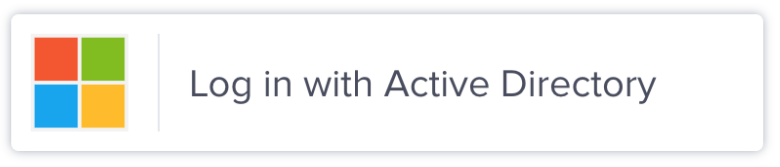
Some schools use a system called Active Directory for managing user accounts. With this setup, students still go to the Clever login page, but they choose the “Log in with Active Directory” button instead of entering a Clever password or signing in with Google.
Here’s what happens:
- Pick “Log in with Active Directory.”
- You’re redirected to your school’s sign-in screen.
- Use the username and password your school gave you for your computer or district account.
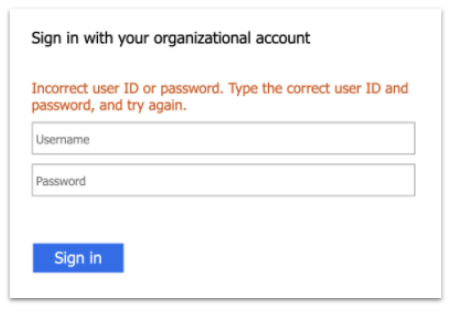
This method lets Clever trust the same credentials your school uses for other systems. If the login fails, you’ll likely need to check with your school’s tech support since your username/password comes from the district’s directory service.
Logging In with a Backup Code
Sometimes a student doesn’t have their password handy, or their Google account isn’t working. In those cases, teachers can help by generating a Backup Code, a temporary, one-time use code that gets you into Clever without needing your usual login details.
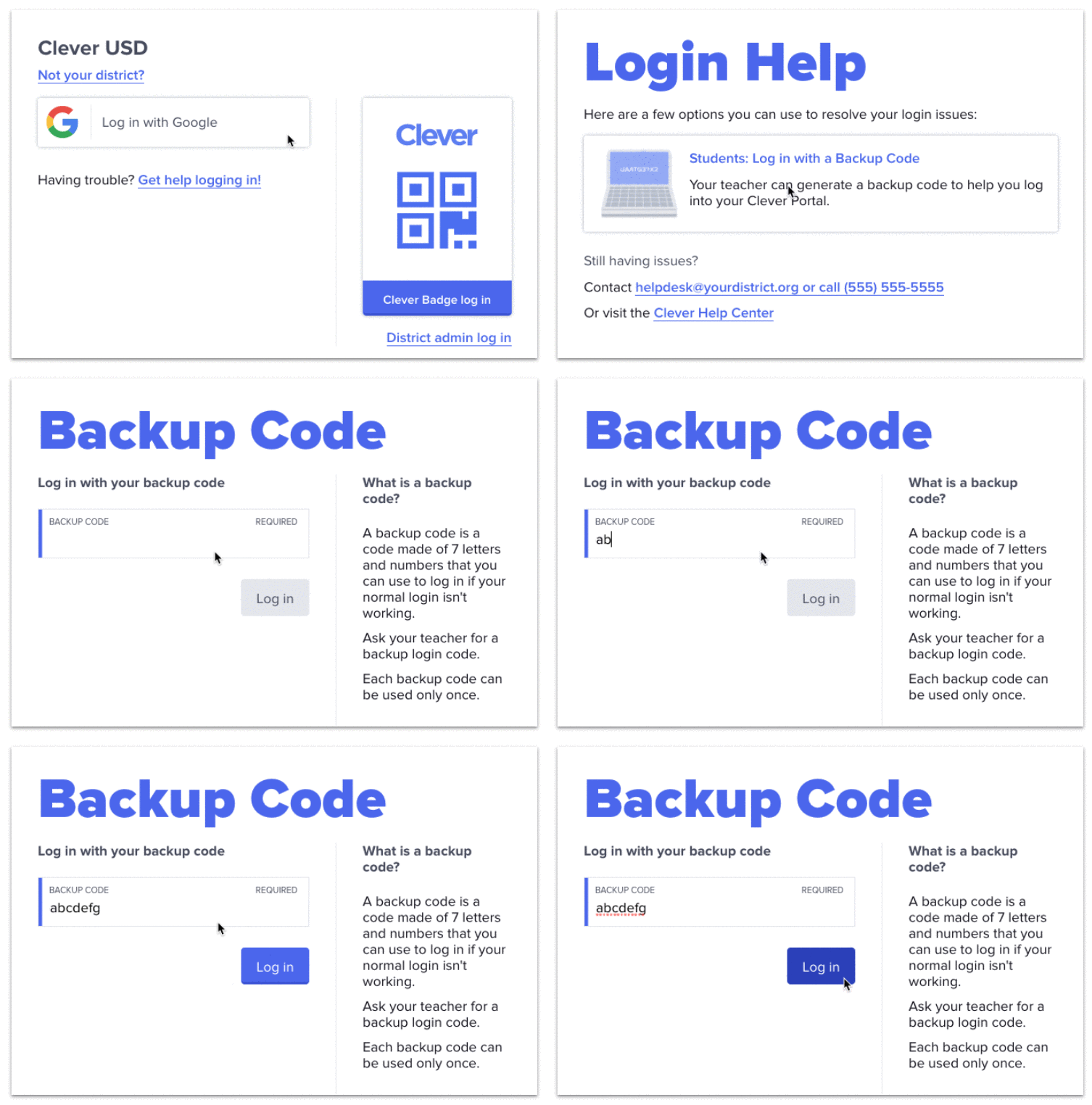
The way this works:
- On the Clever login page, click “Get help signing in!”
- Then choose “Students: Log in with a Backup Code.”
- Enter the six- or seven-digit code your teacher gives you.
- Click “Log in.”
This code is good for a short time (often about 15–20 minutes), so it’s meant to be used right away. Once logged in, you can access your dashboard and catch up on your apps while you sort out your regular login with your teacher’s help.
Log in as Teacher or Staff
Clever is widely used in schools to provide teachers with a secure, centralized place to access digital learning tools. Instead of remembering separate usernames and passwords for every app, Clever connects everything under one login. That makes daily classroom work faster and less stressful.
Understanding Teacher Login Options in Clever
Clever does not force one single way to log in. Schools select the method that best aligns with their systems and policies. Some use Clever-managed passwords, while others rely on services like Google, Active Directory, Canvas, or LDAP.
When you open the Clever login page and search for your school, Clever automatically shows the login options that your school has enabled. You only need to use the option provided by your school.
Log in with Clever Passwords
Clever passwords are created and managed inside Clever itself. This option is common in schools that do not use Google or Microsoft accounts for staff.
How it works
- Your school creates a teacher account in Clever
- You receive a username and temporary password
- You sign in and may be asked to change your password
Step-by-step login
- Go to the Clever login page
- Search for your school name
- Choose the Clever password login option
- Enter your username and password
- Click Log in
Log in with Google
Many schools use Google Workspace for Education. If your school uses Google accounts, Clever can connect directly to them.
What you need
- A school-issued Google account
- Access enabled by your school
How to log in
- Open the Clever login page
- Find your school
- Select Log in with Google
- Choose your school Google account
- Approve access if prompted
If you are already signed in to Google, Clever usually opens right away without asking again.
Logging in with Active Directory
Some schools use Microsoft Active Directory to manage staff accounts. Clever can connect to this system so teachers can use their regular school credentials.
Login process
- Go to Clever and search for your school
- Select the Active Directory login option
- Enter your school email or username
- Enter your Active Directory password
If your password expires or is locked, Clever will not override it. You will need help from your IT department.
Logging in with Canvas
In some districts, Canvas acts as the main learning platform. Clever can use Canvas credentials to sign teachers in.

How this works
- Your school connects Canvas and Clever
- Canvas becomes the login gateway
Login steps
- Open Clever
- Search for your school
- Choose Log in with Canvas
- Enter your Canvas username and password
If Canvas is temporarily unavailable, Clever access may also be affected.
Logging in with LDAP
LDAP is often used in districts with custom or older directory systems. While less common, it still plays an important role in some schools.

What teachers should know?
- LDAP credentials are managed by the school’s IT
- Password rules depend on district policies
How to sign in
- Go to the Clever login page
- Find your school
- Select the LDAP login option
- Enter your assigned username and password
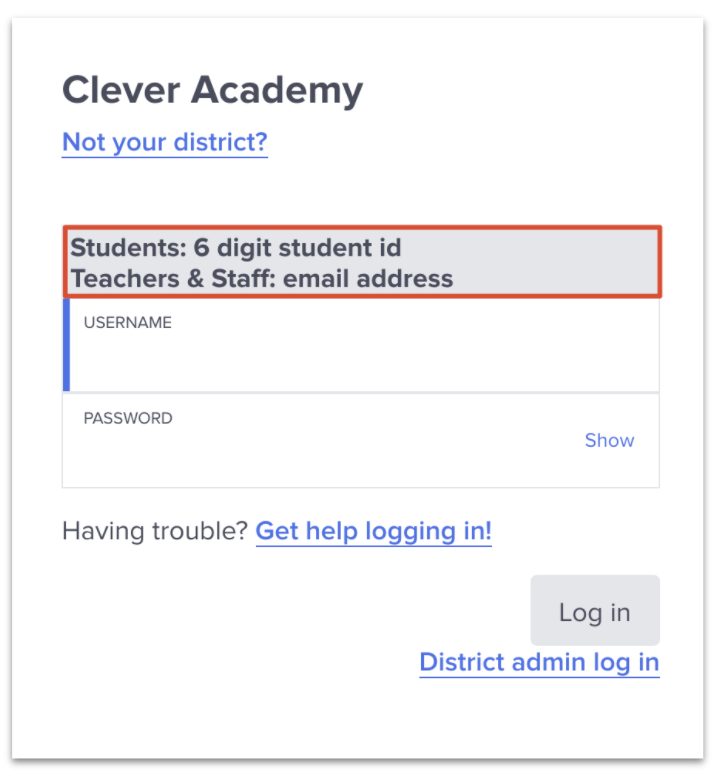
If login fails, it usually means the password needs to be reset or the account is inactive.
Change Your Clever Password
This applies only if your school uses Clever passwords. If you log in through Google, Active Directory, Canvas, or LDAP, password changes happen in those systems instead.
How to change your password
- Log in to Clever
- Open your profile or account settings
- Select Change Password
- Enter your current password
- Set a new password and save

Changing your password regularly helps protect student data and classroom tools.
Logging Out of Clever
Logging out is important when using shared or public devices.
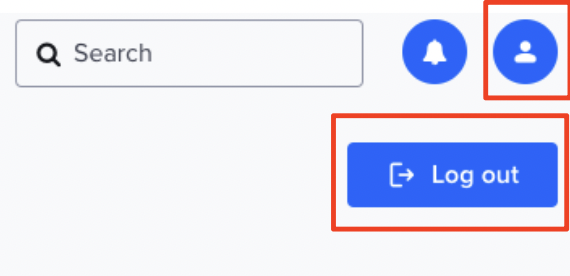
How to log out
- Click your profile icon in Clever
- Select Log out
Log in to Clever Using a Badge
Clever Badges are QR codes primarily for younger students. Opening dozens of apps, remembering multiple passwords, and keeping track of usernames can be a headache for students and teachers alike. That’s exactly the problem Clever aims to solve. It gives learners and educators one central place to sign in and access all their digital learning tools. One of the easiest ways for students to get into Clever is by using a Clever Badge, a visual login method that removes most of the typing from the equation.
What Is a Clever Badge?
A Clever Badge is basically a QR code tied to a student’s account. Instead of entering a username and password every time, students can just show their Clever Badge to a device’s camera and log in instantly. This makes the process faster, especially for younger users who may struggle with keyboard input or remembering credentials.
Badges are often printed by the school and distributed to students. Teachers and tech staff generate these badges through the Clever dashboard and make sure they’re ready for classroom use.
How to Log In With a Clever Badge on a Computer
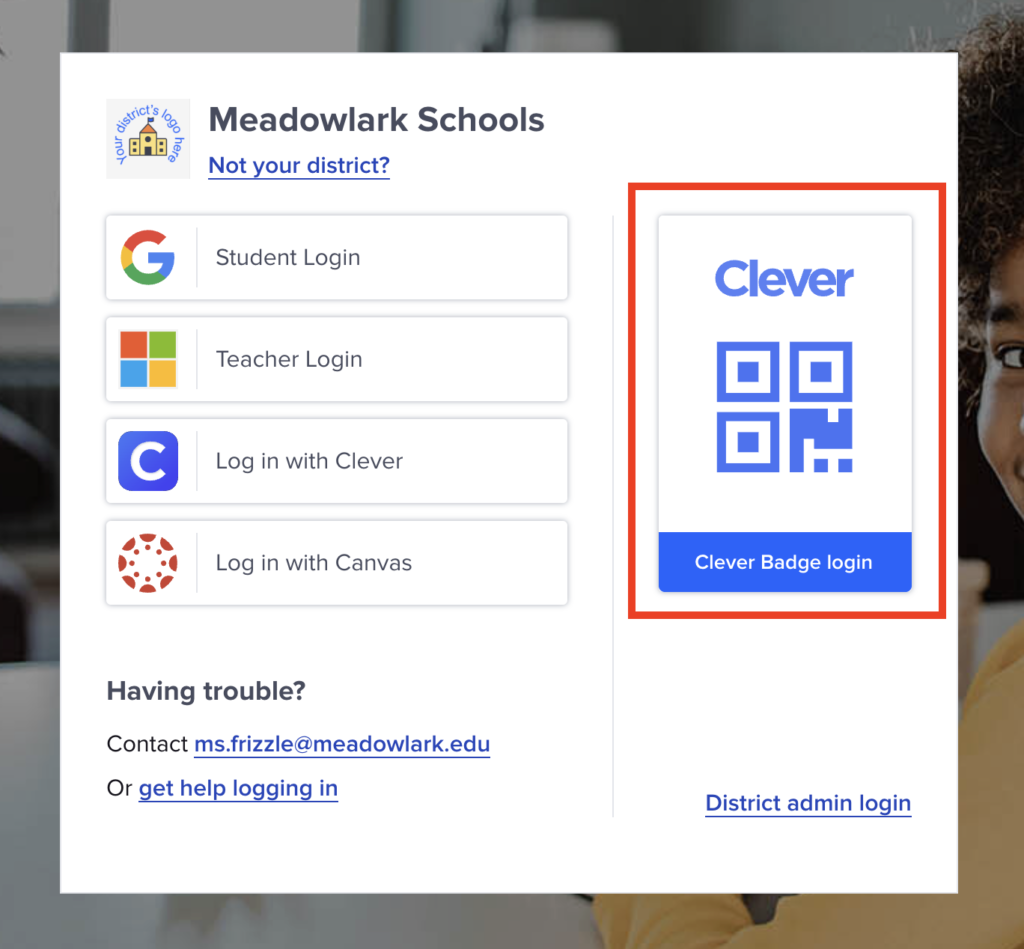
- Open a browser and go to clever.com/login.
- Choose the option that says something like “Clever Badge Log in,” as shown in the image above.
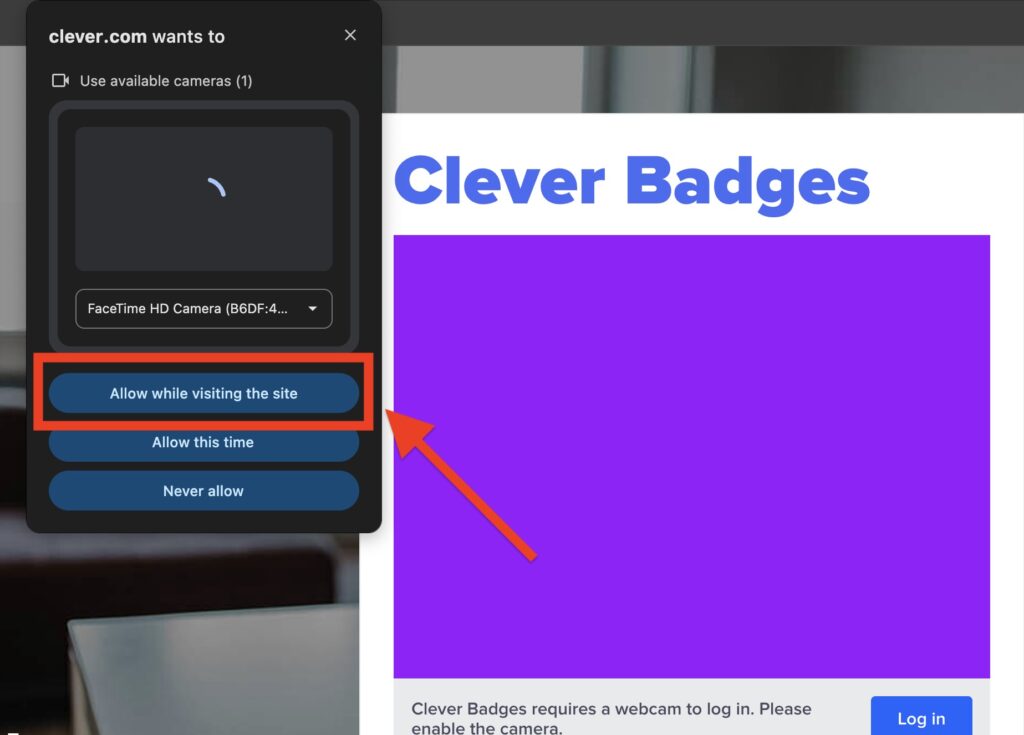
- Your computer will ask for camera access. Allow it as shown in the image below.
- Hold the student’s badge up to the camera so the QR code fills the view.
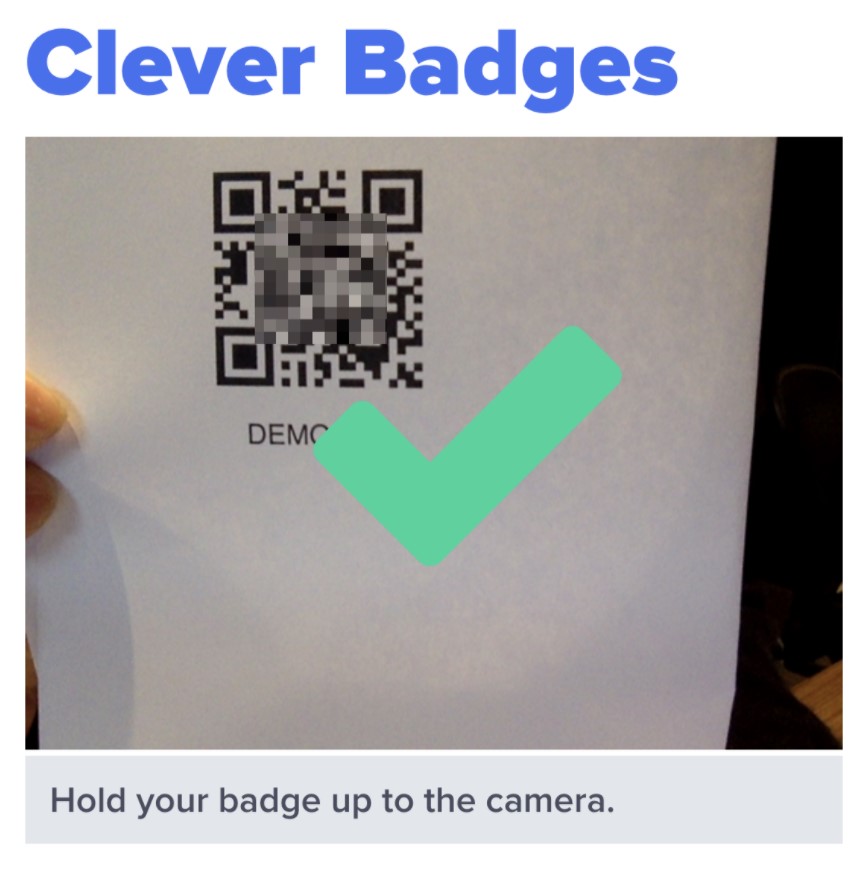
- The system will read the badge and take the student straight into their Clever dashboard.
Once logged in, students will see all the learning apps and tools their school has connected through Clever.
If the camera doesn’t pick up the badge right away, adjust the lighting or move the card closer or farther until it scans properly.
Using a Clever Badge on a Chromebook
Chromebooks are very common in schools, and badge login works much the same:
- From the Chromebook’s login screen, students should select Clever Badge Log in (sometimes under a button like “More ways to log in”).
- Allow the camera to turn on.
- Scan the badge.
- After the scan, the Chromebook signs the student into their Clever account and launches their dashboard.
If the camera permission isn’t showing up, check with your school’s tech team; they may need to adjust device settings so webcams work at the login screen.
Logging In With a Clever Badge on the Clever iOS App
Students who use iPads or iPhones can also log in using their Clever Badge through the official Clever iOS app. The process is simple and works well for schools that rely heavily on tablets.
To get started, the Clever app must already be installed on the device. Once it’s open:
- Tap Log in on the app’s welcome screen.
- Select Clever Badge Log in from the available options.
- When prompted, allow the app to access the device’s camera.
- Hold the Clever Badge in front of the camera so the QR code is clearly visible.
- The app scans the badge and signs the student in automatically.
After logging in, students land on their Clever dashboard just like they would on a computer or Chromebook. All assigned apps appear in one place, ready to open with a single tap.
If the scan struggles to work, adjusting the lighting or holding the badge steadier usually fixes the issue.Using a 6-Digit Badge PIN Instead of Scanning
Using a 6-Digit Badge PIN Instead of Scanning
In some situations, scanning a badge isn’t practical. Cameras may not work properly, or a badge might be temporarily unavailable. That’s where the 6-digit Badge PIN comes in.
Each Clever Badge can be paired with a unique six-digit PIN. This PIN gives students another way to access their account without needing the camera.
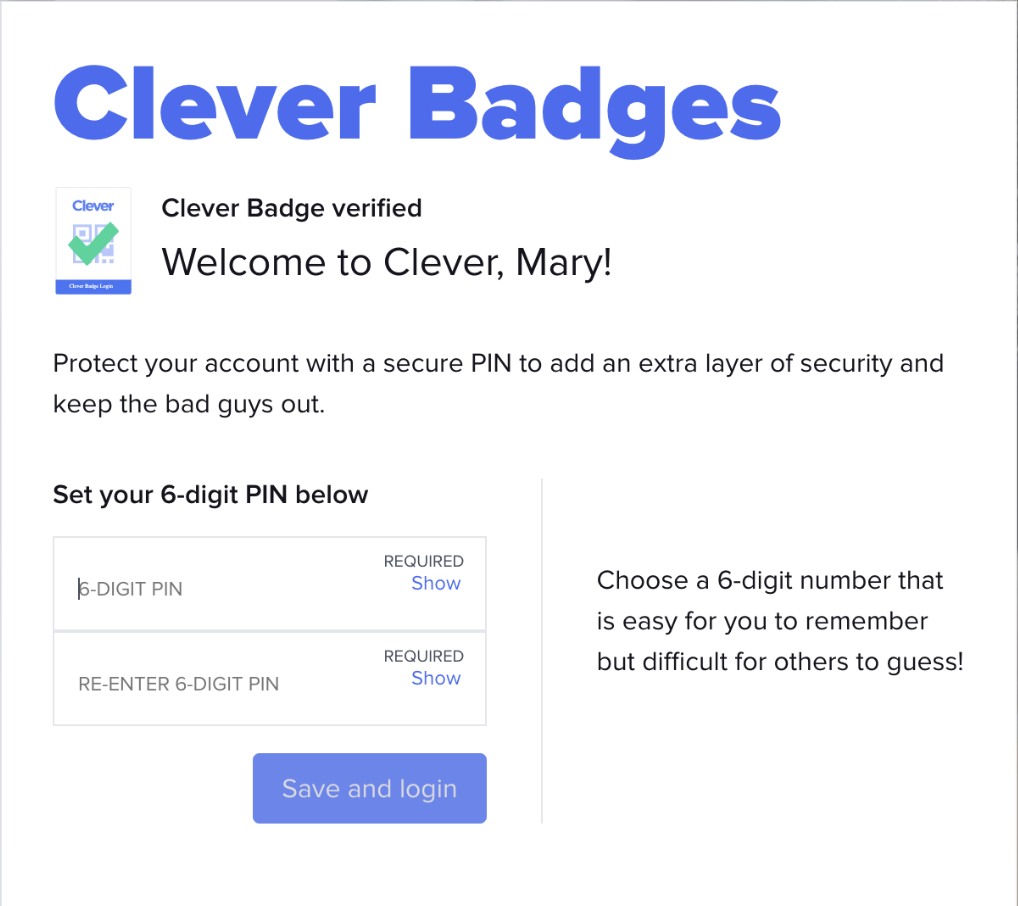
Here’s how it works:
- On the Clever login screen, choose Badge Log in.
- Instead of scanning, select the option to enter a PIN.
- Type in the six-digit Badge PIN associated with the student’s badge.
- Submit the PIN to sign in.
This option is especially useful for shared devices, older tablets, or times when camera access is restricted.
Schools usually provide the PIN along with the printed badge or share it securely with teachers and parents when needed.
What If the Badge PIN Is Forgotten?
Forgetting a Badge PIN happens, especially with younger students. When that occurs, there’s no need to worry or attempt random guesses.
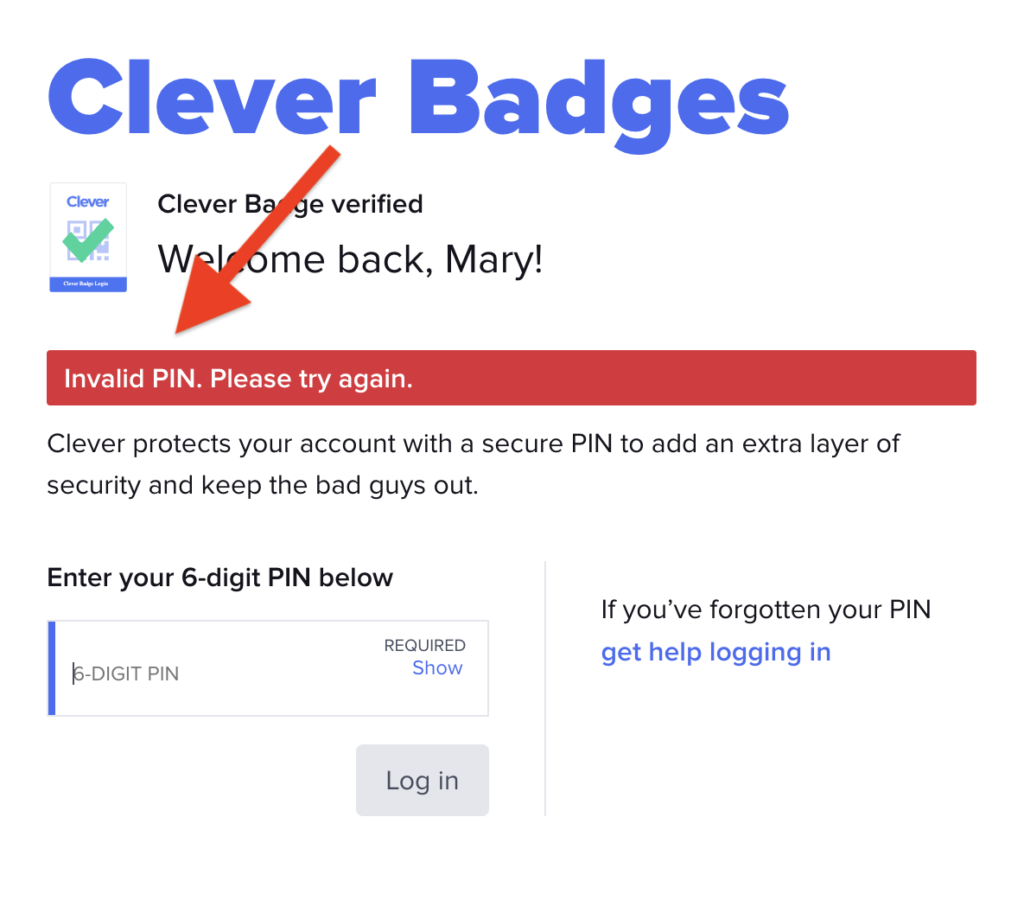
If a student forgets their PIN:
- A teacher or school administrator can reset it from the Clever dashboard.
- Once reset, a new six-digit PIN is generated and shared with the student.
- The old PIN stops working immediately, keeping the account secure.
Students and parents can’t reset Badge PINs on their own. This helps prevent misuse and keeps login access controlled by the school.
If a badge itself is lost or damaged, the school can issue a replacement badge and assign a new PIN at the same time.
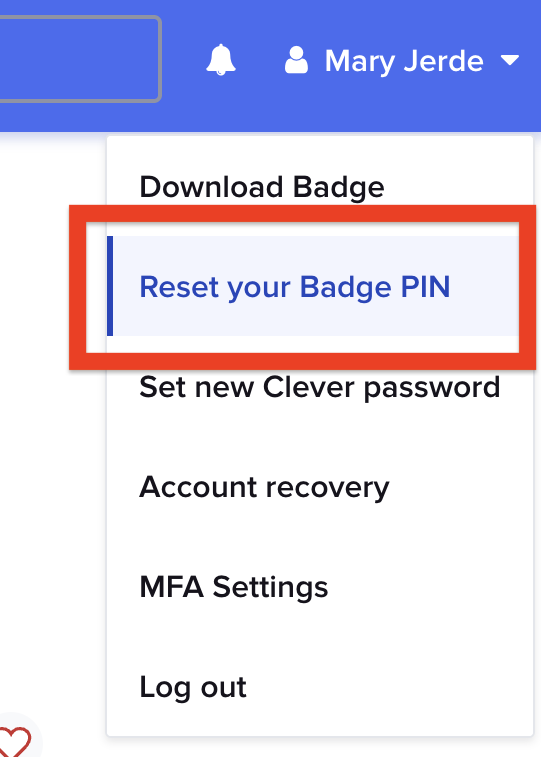
Once the student is logged into their Clever dashboard using the backup method, they usually have the option to reset their six-digit PIN in their account settings (often by clicking the name or profile and choosing “Reset Badge PIN”).
Password Recovery and Resets
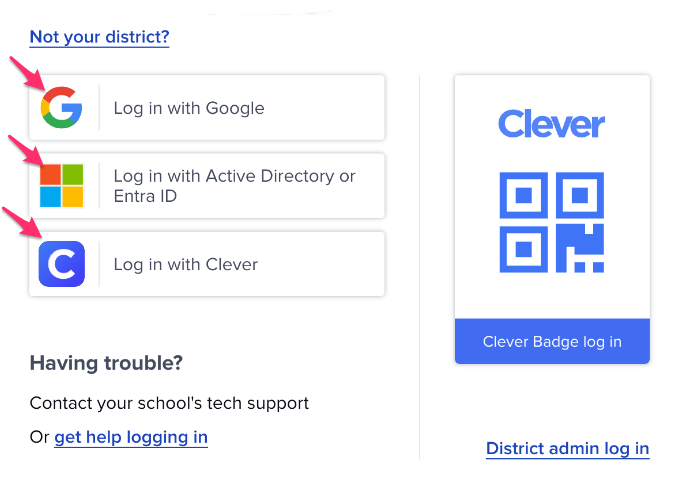
Everyone gets locked out from time to time. Whether you misplace a password, forget which login method to use, or simply need to reset credentials, Clever offers tools to help you get back in. How you recover your account depends on how you log in: Google, Microsoft (Entra ID), Active Directory, or a Clever-managed username and password. Knowing which path applies to you makes all the difference.
How You Log In Matters
Clever doesn’t use a single login method for everyone. Schools choose how users authenticate, and that choice controls how recovery and password resets work.
Most Clever users fall into one of these groups:
- Google accounts
- Active Directory (AD) accounts
- Microsoft Entra ID (formerly Azure AD) accounts
- Clever-managed usernames and passwords
Before trying to reset anything, it’s important to know which login type your school uses. Trying the wrong reset path usually leads to confusion or dead ends.
How Account Recovery Works
The goal of Clever’s account recovery setup is simple: give users a fallback method to regain access without having to contact IT every time. But that setup must be done ahead of time.
If your account uses Clever-managed credentials, meaning your username and password are stored by Clever, you can configure recovery details like an email or phone number to receive reset codes later.
If your login is handled by a third-party identity provider, like Google, Microsoft (Entra ID), or Active Directory, the recovery options depend on how those systems are configured. Clever doesn’t store those passwords, so resets happen through the identity provider, not Clever itself.
Setting Up Recovery
Before you ever get locked out:
- Sign in to Clever (using a browser or portal).
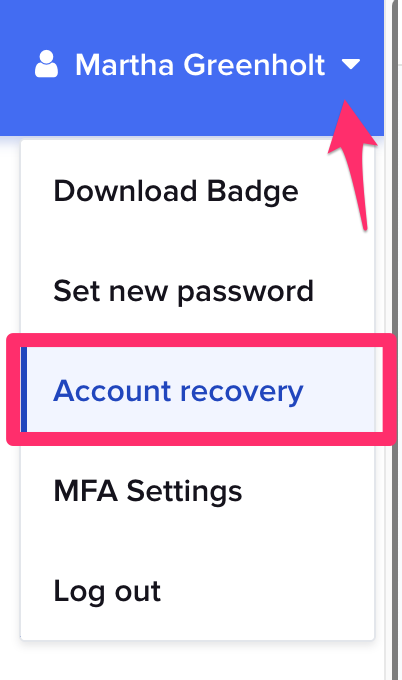
- Click your name or profile menu in the top right.
- Look for Account Recovery Settings.
- Add one or more recovery options, such as:
- A verified email address
- A phone number that can receive codes
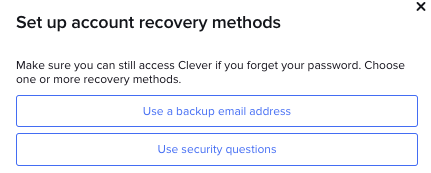
Once you’ve entered at least one recovery method, Clever saves it so you can use that contact information to reset your password later. If you don’t set this up, you’ll need help from your school admin when you get locked out.
Clever Support
Make sure whatever email or phone number you enter is one you access regularly, that’s where Clever sends reset links or codes.
Recovering Your Account From the Clever Login Page
If you reach the Clever login screen and realize you can’t remember your password, the built-in recovery flow can help, if your account supports it.
Here’s what typically happens:
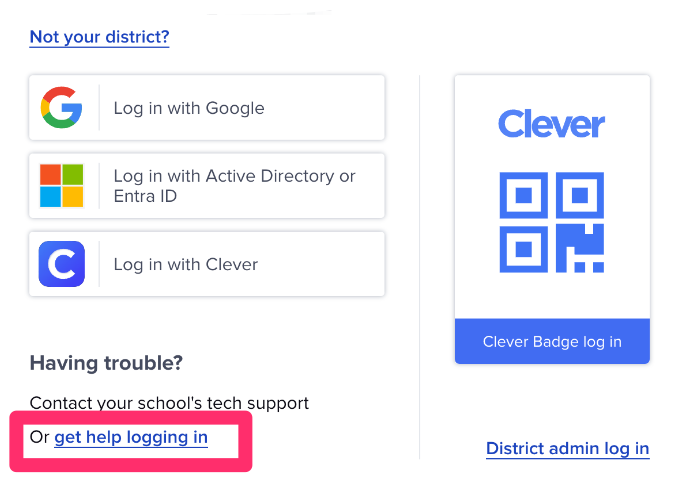
- Open the Clever login page for your school or organization.
- Click Get help logging in or Forgot password.
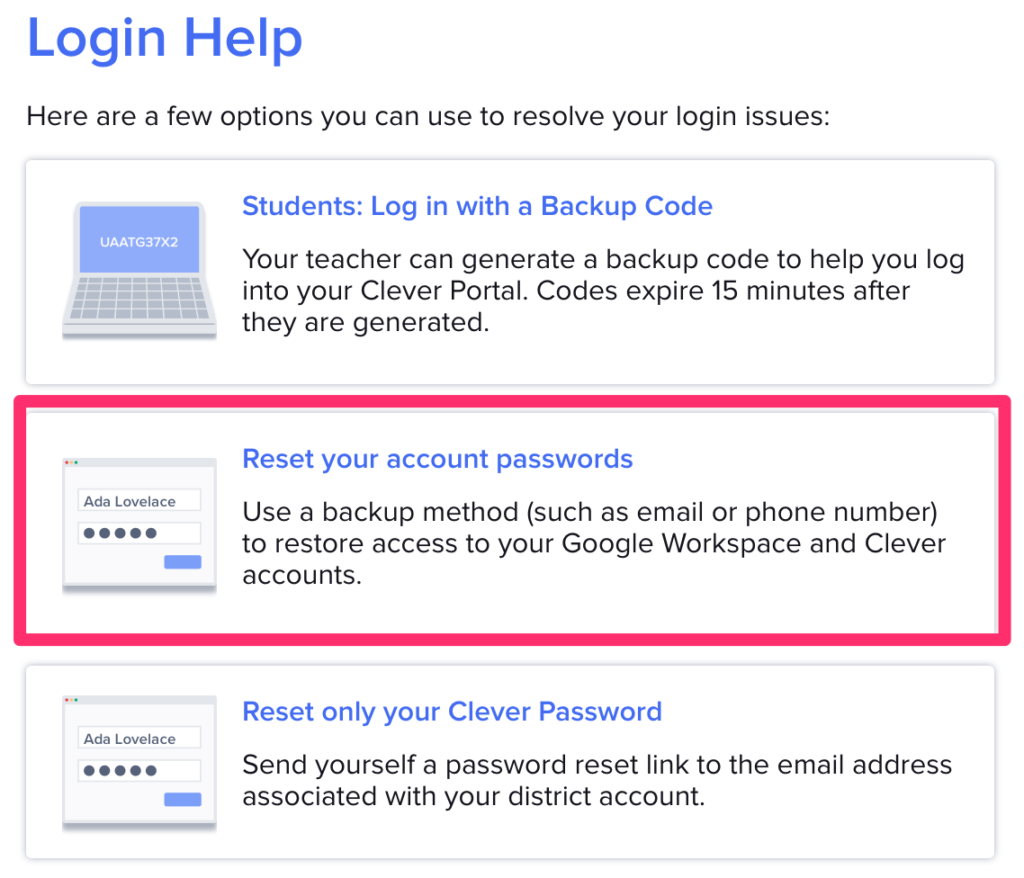
- Enter the email or phone number you set up in recovery.
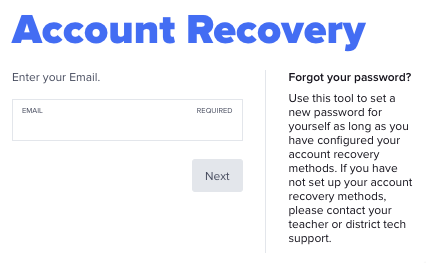
- Clever sends a message with a reset link or verification code.
- You’ll be prompted to confirm your identity using a method you set up in your Portal settings.
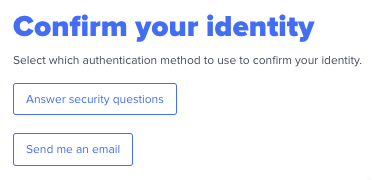
- Use that link or code to set a new password.
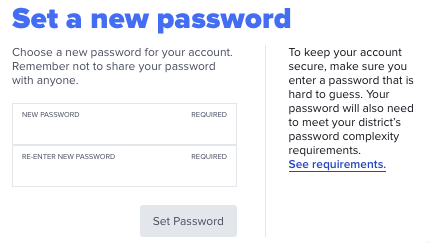
This path works when Clever is the system that stores your password. Clever’s recovery form will ask for your email or phone number and then send a message you can use to proceed.
If your login goes through Google, Active Directory, or Entra ID, that same “Forgot password” button will redirect you to the identity provider to handle the reset. Clever can’t reset passwords; it doesn’t manage.
In some districts, administrators can enable recovery features for accounts handled by third-party providers so that users can reset those passwords from Clever, but this must be set up by the district IT team in advance.
When You Only Need to Reset Your Clever Password
There’s a difference between recovering access and simply changing your password.
- Recovering access happens when you’ve forgotten or can’t sign in at all.
- Resetting a password happens when you know your current password but want to change it for security or other reasons.
To reset a Clever-managed password without losing access:
- Once logged in, click your profile or name in the top right.
- Choose Change Password (or similar wording).
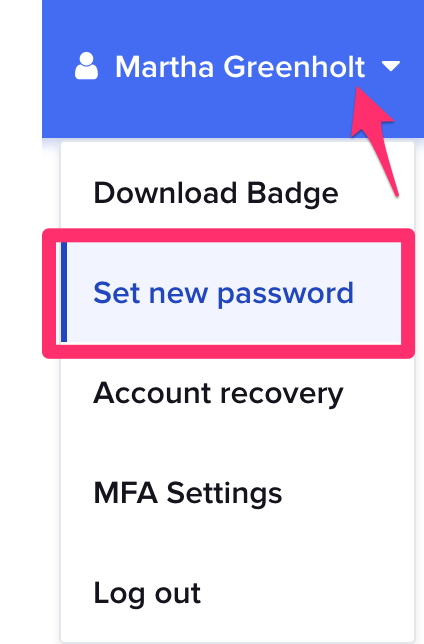
- Enter your current password.
- Enter a new password and confirm it.
- Save the change.
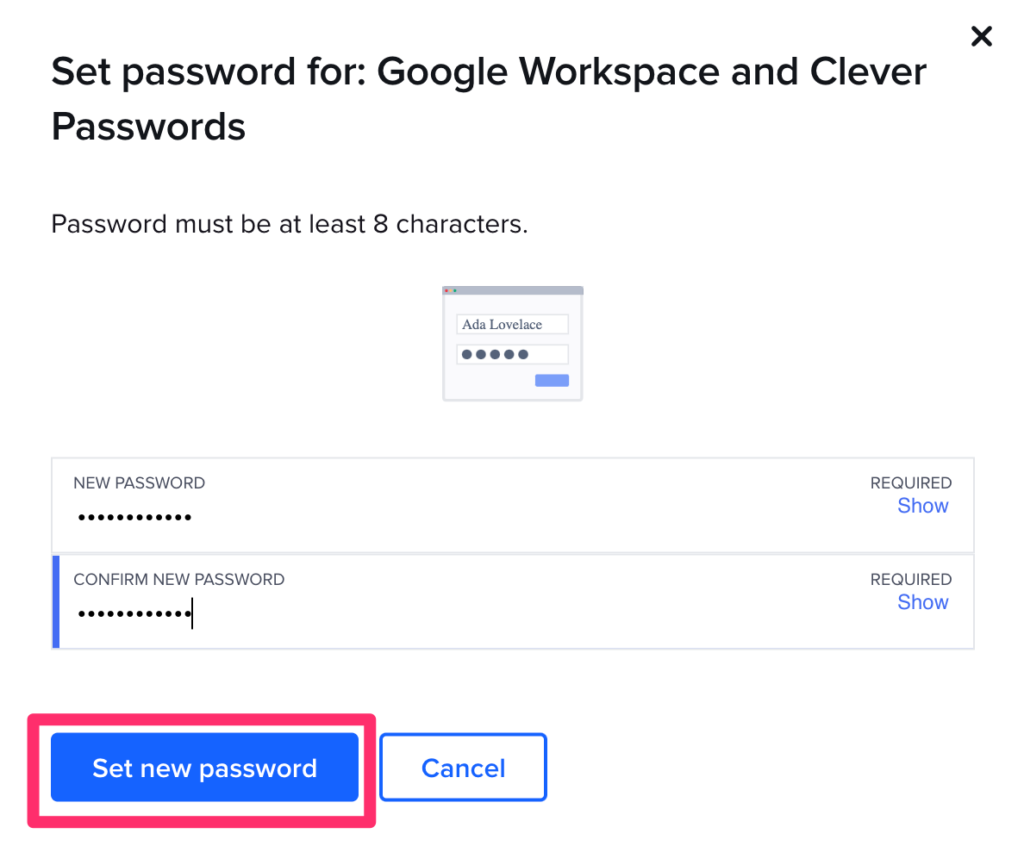
This updates your login immediately. Next time you sign in, use the new password.
If you forgot your current password, you must use the recovery flow described above; Clever won’t let you change a forgotten password from inside the portal without using recovery methods.
When Clever Doesn’t Manage Your Password
If your Clever login uses:
- Google (G Suite / Google Workspace)
- Microsoft Entra ID
- Active Directory
You don’t reset your password on Clever. Instead, you reset it through the identity provider’s own recovery tools. That’s because Clever lets those systems handle authentication for you. You’ll typically be redirected to their login pages, where you can choose “Forgot Password” and follow their steps.
For organizations that mix and match login systems, for example, some users on Google and others on Clever passwords, the login buttons on the Clever screen tell you which method is used. Clicking the right one makes sure you’re sent to the correct reset path.
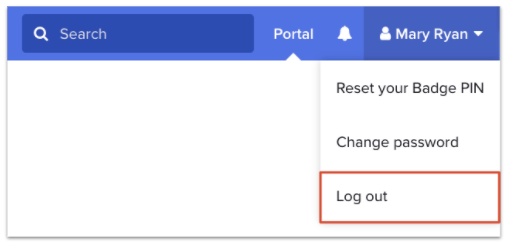
Logging Out
- Always log out on shared devices to maintain security.
- Click your profile and select “Log Out” to exit the portal.
How Clever Works
The best way to understand how Clever Portal works is to look at what happens behind the scenes.
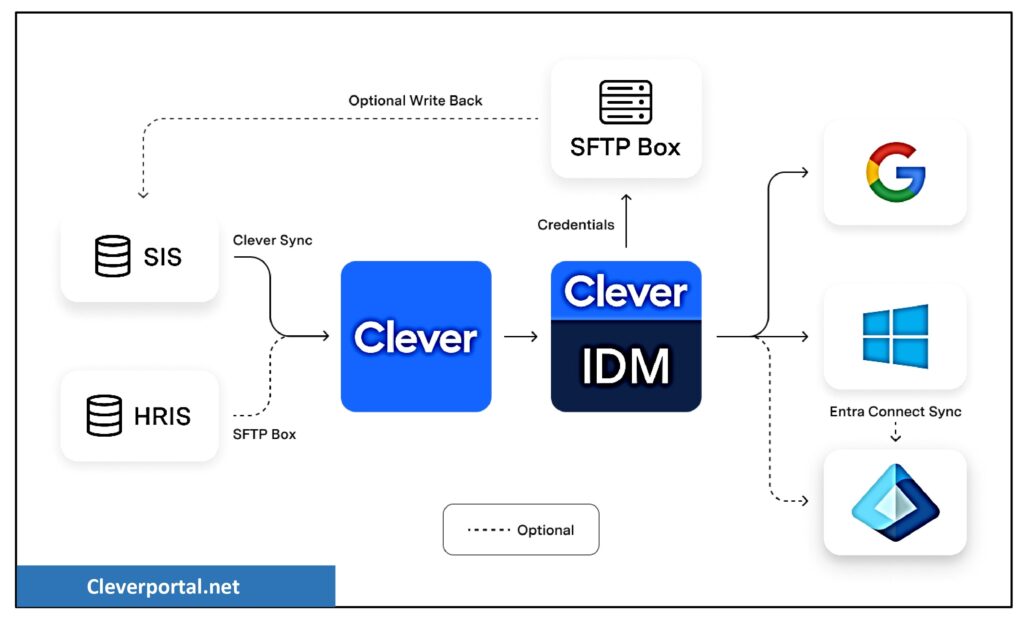
When a district joins Clever, it connects its student information system (SIS), the database that stores details like student names, classes, and teachers, directly to Clever. The portal automatically imports that information to create accounts for each user.
Once connected, administrators add the apps their district uses: reading programs, math games, test platforms, and more. Clever integrates with hundreds of educational apps, so once a student logs in, they can open any of them instantly, without extra passwords.
For younger children, Clever even allows login through Clever Badges, which use QR codes instead of typed passwords.
From a teacher’s point of view, this means every student can reach the right learning tools without needing constant technical help.
Why Schools Choose Clever Portal
Clever Portal has become essential for modern education, transforming digital learning through streamlined access and centralized management.
Unified Access to All Learning Tools
A single login provides instant access to every educational application, from Google Classroom to specialized learning platforms.
Enhanced Instructional Efficiency
Eliminate classroom login delays and redirect time toward meaningful instruction and personalized student support.
Enterprise-Grade Security
Military-grade encryption and verified connections ensure complete protection of sensitive student information and institutional data.
Accessible for Early Learners
QR badge authentication enables even kindergarten students to independently access digital curriculum without typing skills.
Centralized Administration
IT administrators maintain complete control over user accounts, permissions, and application access through a single management console.
Comprehensive Ecosystem Integration
Seamlessly connects with leading educational platforms including Zoom, Khan Academy, IXL, and hundreds of specialized learning applications.
Clever Portal SCPS and Other District Portals
Many school districts have their own version of Clever. For example, Clever Portal SCPS is the login portal for Seminole County Public Schools in Florida.
Each district gets a custom Clever URL and can add its own logo, links, and announcements. The structure remains the same, but the design and login methods may differ.
This local customization enables schools to securely manage their own user data while still benefiting from Clever’s core features. Whether you’re in SCPS, Houston ISD, or Los Angeles USD, the experience will feel familiar: one login, one dashboard, hundreds of learning possibilities.
Key Features of Clever Portal
Here’s a closer look at the most useful Clever features that make it stand out:
Single Sign-On (SSO)
Students log in once and access all their apps instantly. No repeated passwords, no wasted time.
Clever Badges
Younger students can scan a printed or digital badge to log in without typing. It’s quick, safe, and perfect for early learners.
Custom Dashboards
Teachers and schools can arrange app tiles, add links, or post announcements directly on the dashboard.
Automatic Rostering
Student and teacher data syncs automatically from the school’s information system. When students change classes, their Clever setup updates too.
Secure Data Handling
Clever meets strict data privacy standards. Schools can rest assured that student data is handled responsibly.
App Integration
Hundreds of learning tools can be connected, from math games to testing software, all accessed from the Clever Portal.
Usage Reports
Administrators can track app usage and login data to understand engagement and improve learning programs.
How Clever Helps Everyone in Education
For Students
- ✓ One login for all apps
- ✓ All tools in one dashboard
- ✓ Access from anywhere
- ✓ Works on all devices
For Teachers
- ✓ Central portal for all tools
- ✓ Faster student logins
- ✓ Send announcements & links
- ✓ Quick troubleshooting
For Schools & Districts
- ✓ Central user management
- ✓ Secure app integration
- ✓ Real-time SIS syncing
- ✓ Detailed analytics
For Parents & Families
- ✓ See what kids are using
- ✓ Check learning progress
- ✓ Access communication tools
- ✓ Easy home login help
Clever Security and Privacy
Clever is built around safety. Every login is protected with strong encryption, and all student information stays within the school’s network.
Data is never sold or shared for advertising. Each app connected through Clever must meet specific data protection standards before integration.
Schools can also choose what information to share with each app, ensuring privacy by design.
With rising concerns over student data, Clever’s commitment to privacy makes it one of the most trusted platforms in K–12 education.
Troubleshooting Clever Login Issues
Sometimes students or teachers run into small problems logging in. Here are some easy fixes:
- Check the school link: Make sure you’re on your district’s Clever login page.
- Reset password: If your password doesn’t work, contact your teacher or school IT office.
- Use the correct login method: Some schools use Google, others use usernames.
- Try a different browser: Chrome and Edge work best.
- Clear cache: If the portal doesn’t load properly, clear your browser cache or restart the device.
- If problems continue, schools can reach out to their Clever administrator or visit the Clever help desk for guidance.
How to Make the Most of Clever Portal
Here are a few tips for students and teachers:
- Bookmark your Clever login portal so you can access it instantly.
- Organize your dashboard, move your favorite apps to the top.
- Log in daily to keep your session active and get updates.
- Use the same browser for consistent performance.
- Ask your teacher to add class-specific links or apps.
The more familiar you become with Clever, the smoother your learning experience gets.
Why Clever Portal Is the Future of Digital Learning
Education is shifting online, and the need for simplicity, security, and easy access has never been greater. Clever Portal answers all those needs in one clean solution.
Instead of dealing with endless logins, passwords, and setup issues, schools can give students a single key to unlock every digital resource.
It saves time, protects data, and makes technology easier for everyone, from kindergarten to high school.
Whether you call it the clever login portal, clever portal student login, or your district’s custom Clever site like clever portal scps, the goal is the same: making digital learning fast, safe, and effortless.
Frequently Asked Questions
How do I log in to the Clever Portal?
Visit your school’s Clever page or go to clever.com/login, then choose your login method.
Is Clever Portal free?
Yes, it’s free for students and teachers. Schools pay for integrations and management features.
What is Clever Badge login?
It’s a QR code students can scan to log in quickly without typing passwords.
What is Clever Portal SCPS?
It’s the Clever login page for Seminole County Public Schools, which uses its own custom portal link.
Conclusion
Clever is a powerful tool for modern schools. It simplifies digital learning, reduces login frustration, and organizes apps in a single, easy-to-use portal. By understanding Clever’s setup, login options, and features, students and teachers can focus on learning rather than technical problems.
With Clever, schools can efficiently manage apps, secure student information, and provide a smoother experience for everyone.
