
Clever Login Troubleshooting Guide for School Tech Leads
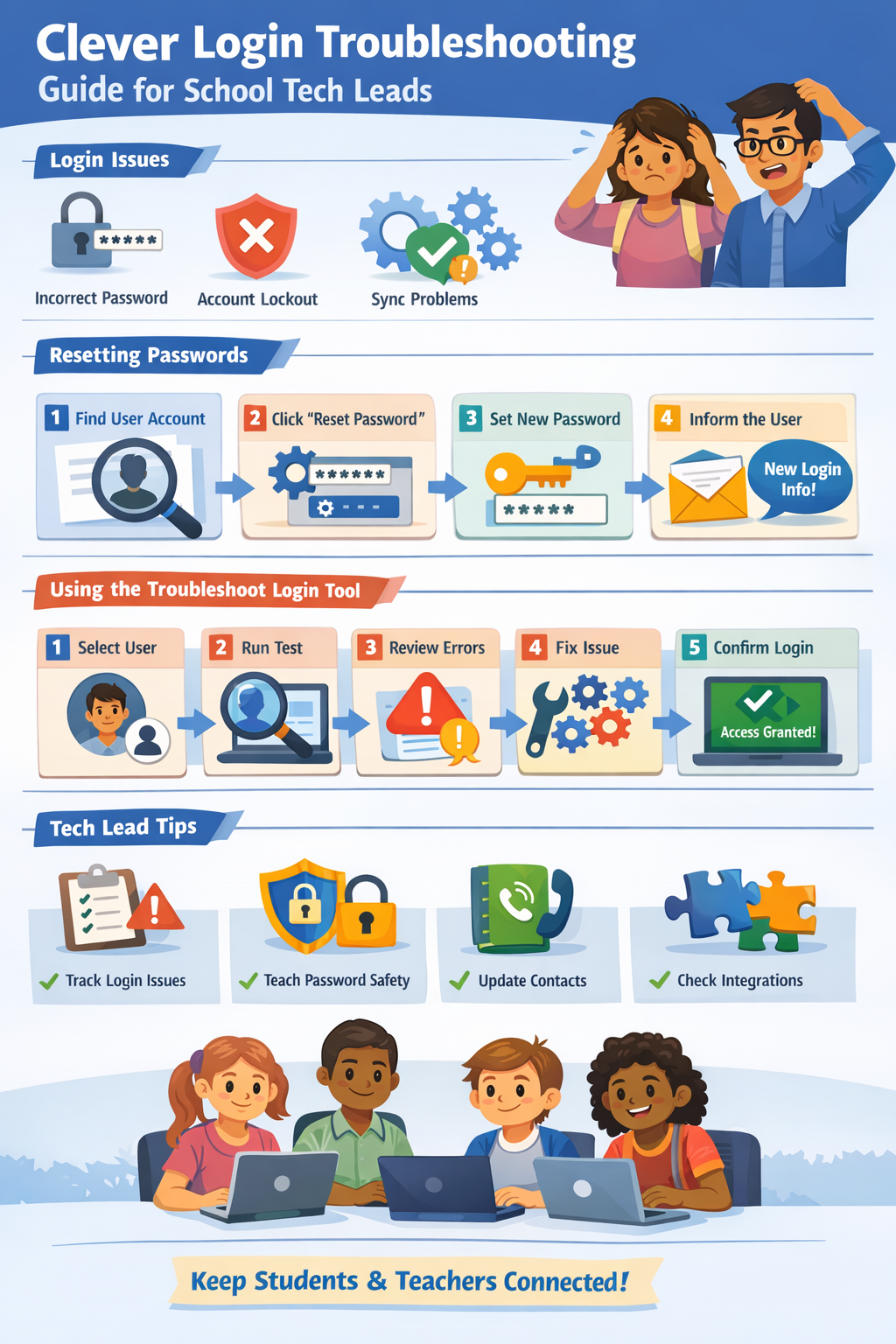
Managing student and teacher accounts in a digital learning environment can be challenging. Even the most tech-savvy schools occasionally face login issues, forgotten passwords, or access errors. Clever provides tools to make these tasks more manageable, and understanding them can save a lot of time and frustration.
Common Login Challenges for Students and Teachers
Students and teachers sometimes encounter login errors that prevent access to their Clever accounts. These errors can take different forms:
- Incorrect passwords: Users often forget their passwords or enter them incorrectly.
- Account lockouts: Multiple failed login attempts can temporarily lock an account.
- Integration issues: Accounts linked with Google, Microsoft, or other identity providers may experience synchronization problems.
Being familiar with these common issues helps tech leads diagnose and resolve problems quickly.
Resetting Student and Teacher Passwords
Password management is a key part of maintaining smooth access. Clever allows tech leads to reset passwords for both students and teachers without waiting for support from the identity provider.
Steps for resetting passwords:
- Log in to your Clever admin account.
- Navigate to the user management section.

- Locate the student or teacher account requiring a password reset.
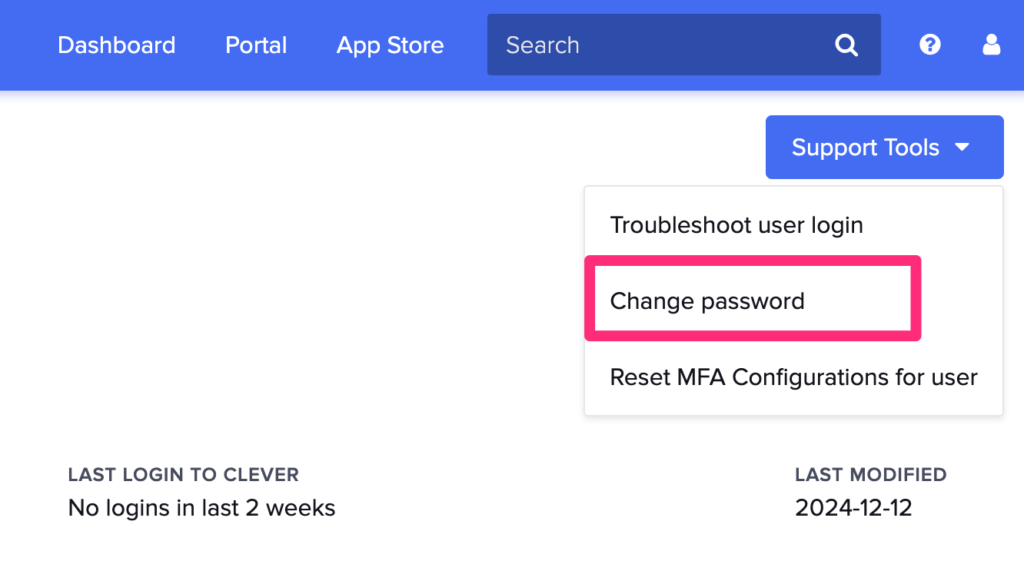
- Initiate the password reset, and provide the new temporary password if necessary.
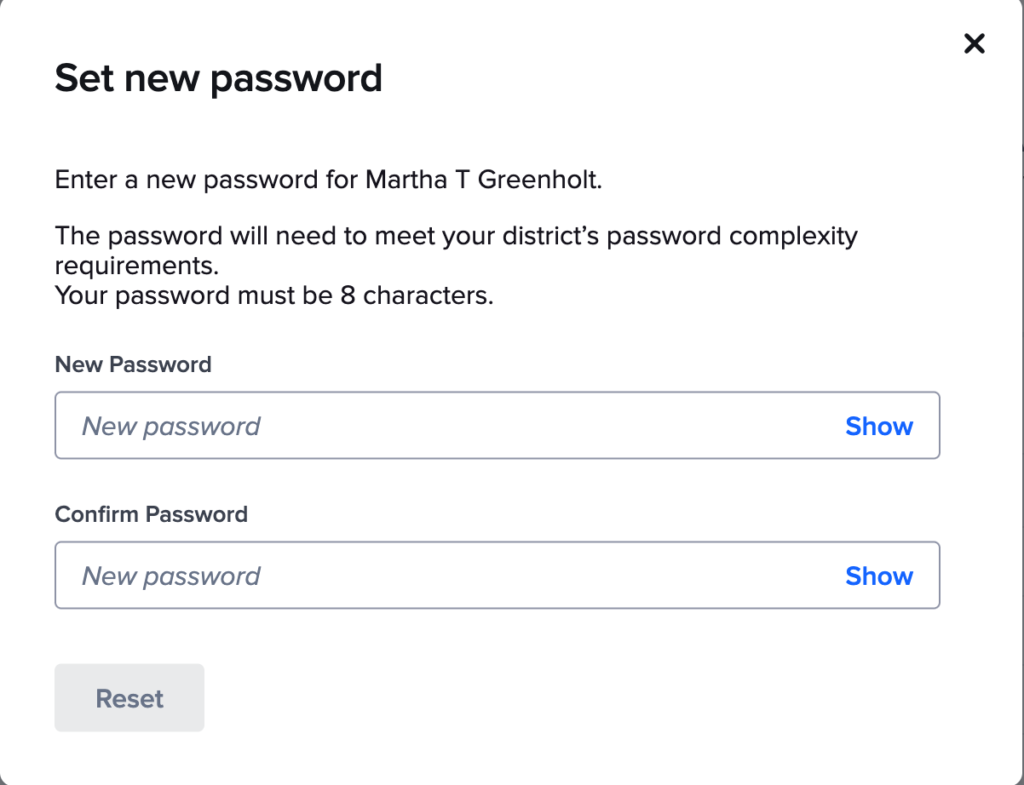
It’s helpful to communicate the new credentials to the user clearly and securely. This ensures they can log in immediately and continue learning without disruption.
Troubleshooting the Login Tool
Clever includes a built-in Troubleshoot Login tool designed to simplify the process of identifying and fixing login issues. This tool is especially useful when the problem isn’t immediately clear, such as with accounts tied to multiple authentication providers.
Key functions include:
- Account verification: Checks whether the user exists in Clever and confirms their credentials.
- Authentication checks: Tests whether the login credentials match the linked identity provider, such as Google or Microsoft.
- Error reporting: Provides insights into why a login failed, enabling tech leads to take corrective action efficiently.
Using the Troubleshoot Login Tool Effectively
To make the most of the Troubleshoot Login tool:
- Select the affected user: Begin by entering the student or teacher’s details.
- Run a verification test: The tool will simulate a login attempt to detect where the failure occurs.
- Interpret the results: Review any error messages or flags generated by the tool.
- Take action: Depending on the result, you may reset the password, correct user information, or coordinate with the identity provider.
- Confirm resolution: Always test the login after making changes to ensure the issue is fully resolved.
Using this tool not only speeds up troubleshooting but also reduces unnecessary frustration for students and teachers.
Best Practices for School Tech Leads
- Maintain a log of recurring login issues to identify patterns.
- Educate teachers and students on secure password practices and proper login procedures.
- Keep contact information up-to-date to quickly communicate password changes or access instructions.
- Regularly review account settings and integrations to prevent login disruptions before they happen.
By proactively managing accounts and using Clever’s tools effectively, tech leads can minimize downtime and create a smoother digital learning experience for everyone.
This approach turns what could be a stressful process into a clear, manageable workflow. Proper use of password resets and the Troubleshoot Login tool ensures that both students and teachers can access learning resources reliably, keeping the focus on education rather than technical hurdles.